 FieldOps
Welcome
FieldOps keeps a field team's projects, site maps, forms, documents, messages and calls in one app that keeps working when there is no signal. It is built for teams who survey, inspect, build or monitor sites and need everyone looking at the same up-to-date picture.
You can use FieldOps on:
- Android phones and tablets and iPhone/iPad: the full app, including complete offline working.
- A web browser at app.fieldopsinc.com: the same features, but it needs an internet connection.
- Windows and Mac computers: the desktop app, which also keeps working offline.
How this manual is organised
Start with Getting started and Finding your way around. After that, each section covers one part of the app and can be read on its own. Sections marked managers describe tools only project or group managers see. The last two sections cover getting help and fixing common problems.
A few words you will see
| Word | What it means |
|---|---|
| Project | One job or site. It holds a timeline, forms, a map and documents. |
| Group | A folder of projects and people, for example one client or one region. |
| Member | Someone who has joined a project or group. You only see projects you are a member of. |
| Manager | A member who can edit settings, invite or remove people, and change shared content. |
| Timeline | A project's running diary of updates, photos, videos and notes. |
| Feature | Anything drawn on a project map: a marker (point), a line or an area. |
| Status | A short post that disappears after 24 hours, shown at the top of Messages. |
| Queue | Work saved on your device that is waiting to upload when you are back online. |
Getting started
You create your own FieldOps account with your mobile phone number; nobody has to set it up or approve it for you. Once you are in, you can use the app straight away.
Get the app
- Android: install FieldOps from the Google Play Store.
- iPhone or iPad: install FieldOps from the App Store.
- Browser: go to app.fieldopsinc.com.
- Windows or Mac: install the desktop app your team provides.
Create an account
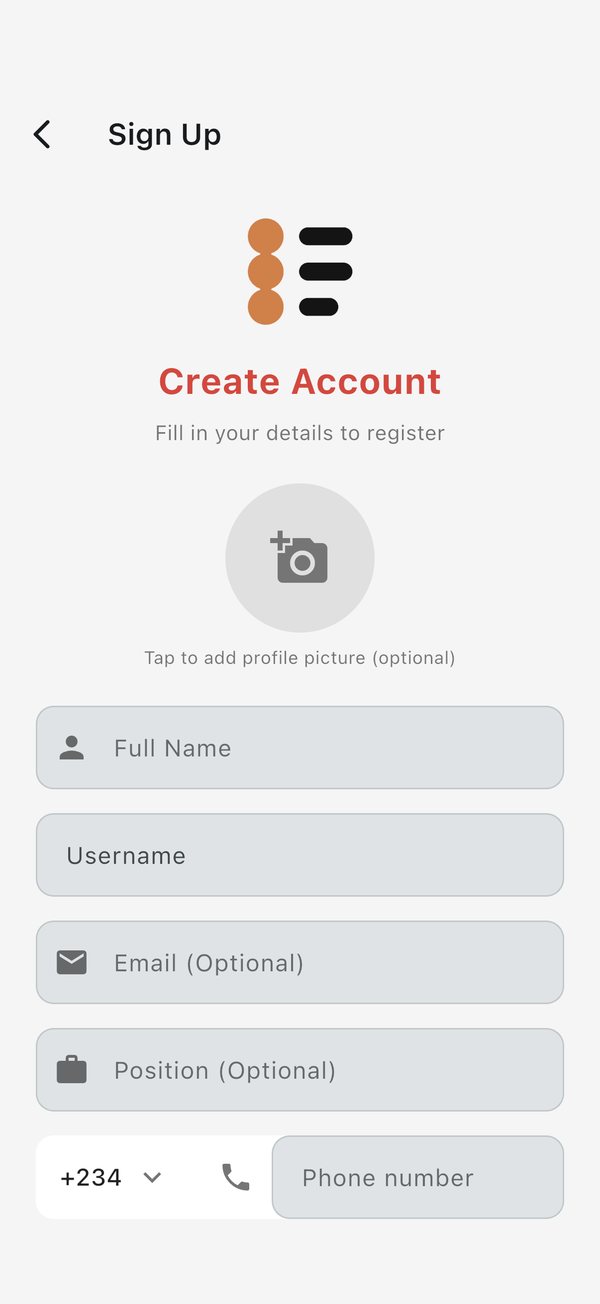
- Open FieldOps and tap Don't have an account? Sign Up.
- Tap the circle at the top to add a profile picture (optional). You can take a photo or choose one from your gallery.
- Enter your Full Name and choose a Username (see below).
- Add your Email and Position if you like. Both are optional.
- Tap the country code to pick your country, then type your phone number without the leading zero.
- Tap Register. FieldOps texts a 6-digit code to your phone.
- Type the code and tap Verify Code. You land on the home screen.
If the number already has an account, the app tells you to sign in instead.
Sign in
- Open FieldOps. The screen reads Sign in with your phone number.
- Choose your country code and enter your number.
- Tap Send SMS Code, then type the 6-digit code and tap Verify Code.
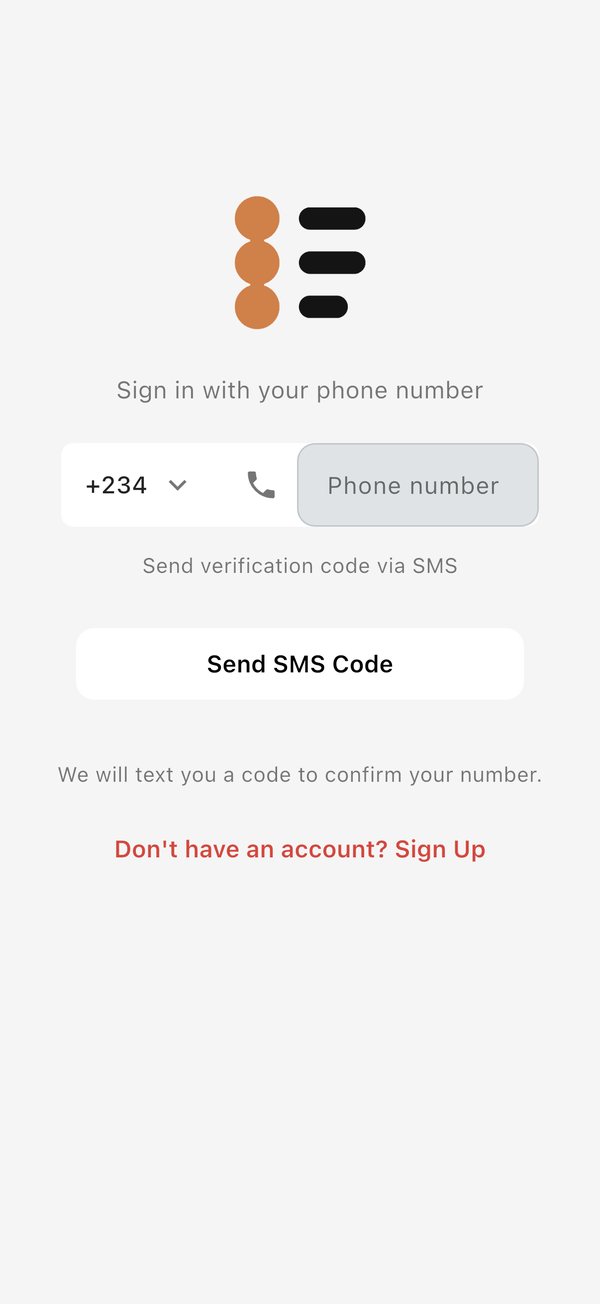
You get 3 tries at each code. After the third wrong try the app asks you to request a new code. Tap Change Number if you typed the wrong number.
On iPhone, the app may briefly open a "verify you are not a robot" page before the code is sent. Complete it and you return to the app.
Choose your username
Everyone has an @username. It is how teammates find you, mention you in posts and messages, and recognise you in lists. Groups and projects can have one too.
- Use 3 to 20 characters: lowercase letters, numbers and underscores.
- Start with a letter, for example
amina_korsite2lead. - Tap Suggest one for me if you are stuck.
- Turn Allow search by @username off if you do not want to appear in other people's search results. You can change this later under Privacy on your profile.
If you had an account before usernames existed, the app asks you to tap Claim username before it opens. You cannot skip this step, but you can tap Sign out instead.
Permissions the app asks for
The first time you use each feature, your phone asks whether FieldOps may use it. Allowing them makes the feature work fully:
| Permission | Used for |
|---|---|
| Notifications | Alerts for messages, calls, mentions and project updates |
| Full-screen alerts (Android) | Making calls ring on a locked screen, like a normal phone call |
| Microphone | Calls, voice notes and voice updates |
| Camera | Video calls, site photos and videos |
| Location | Your position on the map, navigation, trips and form locations |
| Photos and files | Attaching pictures, videos and documents |
| Contacts | Finding teammates already on FieldOps (optional) |
You can change any of these later in your phone's settings.
Signing in with no internet
On a phone or computer where you have signed in before, FieldOps opens even with no signal and you can keep working with what is already on the device. The very first sign-in on a device needs a connection to receive the SMS code. The web version always needs a connection.
App updates
When a new version is out, FieldOps shows an update page with what has changed. Tap Update now to go to the store. A recommended update has a Later button; a required update does not, and the app stays locked until you update.
Finding your way around
The home screen has three tabs: Projects, Messages and Calls. Switch between them by tapping the floating bar at the bottom of the screen or by swiping left and right. FieldOps reopens on the tab you used last.
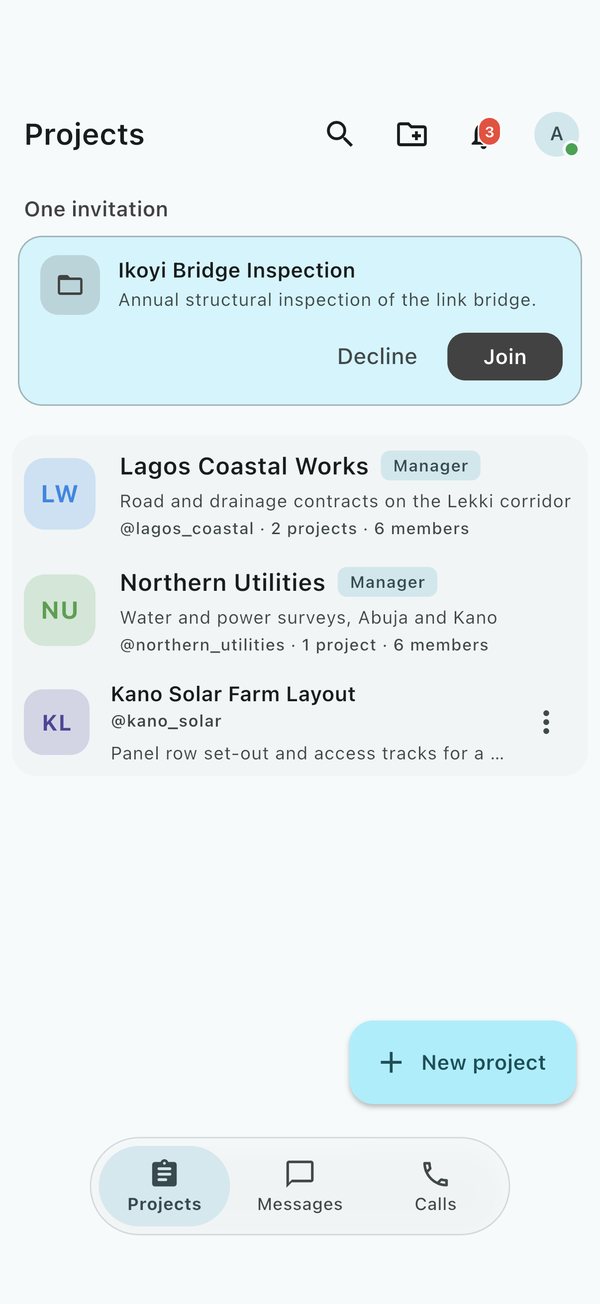
The top bar
The buttons along the top change with the tab you are on.
| Button | Where | What it does |
|---|---|---|
| Search (magnifying glass) | Projects | Finds groups, projects and people by name or @username |
| New group (folder with a plus) | Projects | Creates a group to organise projects and people |
| Search messages | Messages | Searches your conversations |
| Dialpad | Calls | Opens a keypad to call a teammate or any phone number |
| Bell | All tabs | Opens your notifications; the badge shows how many are unread |
| Your photo | All tabs | Opens your profile and settings |
Your photo in the top corner shows whether you are online. Hold your finger on it to see Profile · Online or Profile · Offline.
Inside a project
Opening a project gives you its workspace. A floating bar at the bottom, like the one on the home screen, moves between the project's three pages: Forms, Timeline, Satellite (the map). The project's Documents sit in a side panel. Each has its own section in this manual.
Phones on their side, tablets and computers
Turn your phone sideways, or use a tablet or computer, and the home screen shows two tabs side by side:
- Tap Projects to see Projects next to Messages.
- Tap Calls to see Messages next to Calls.
- Tap Messages to jump to whichever side is showing your messages.
Inside a project on a wide screen, a contents panel listing everything on the map sits beside the work area. Settings and other single pages stay in a centred column so text does not stretch edge to edge.
If the Projects tab says Subscribe
Some FieldOps services charge for projects. When subscriptions are switched on and you have none, the first tab reads Subscribe and shows Projects are for subscribers. Messages and calls keep working either way. See Subscription under Your profile and settings.
Projects
A project is where one job lives: its timeline, forms, map and documents, and the people working on it. You only ever see projects you are a member of.
The Projects tab
The Projects tab lists your groups and the projects that are not in a group, most recently active first.
- Tap a project to open its workspace, or a group to see what is inside it.
- Tap the search button to filter by name or @username.
- Invitations waiting for your answer appear at the top. Tap Join or Decline.
- To keep a project at the top, open the menu on its row and tap Pin to top. You can pin up to 5; Unpin frees a place. Pins are yours alone and are not shown to anyone else.
- To file several projects into a group at once, press and hold one to start selecting, tap the others, then tap Move.
- When new projects arrive while you are looking at the list, a New Projects Available banner appears. Tap it to refresh.
Create a project
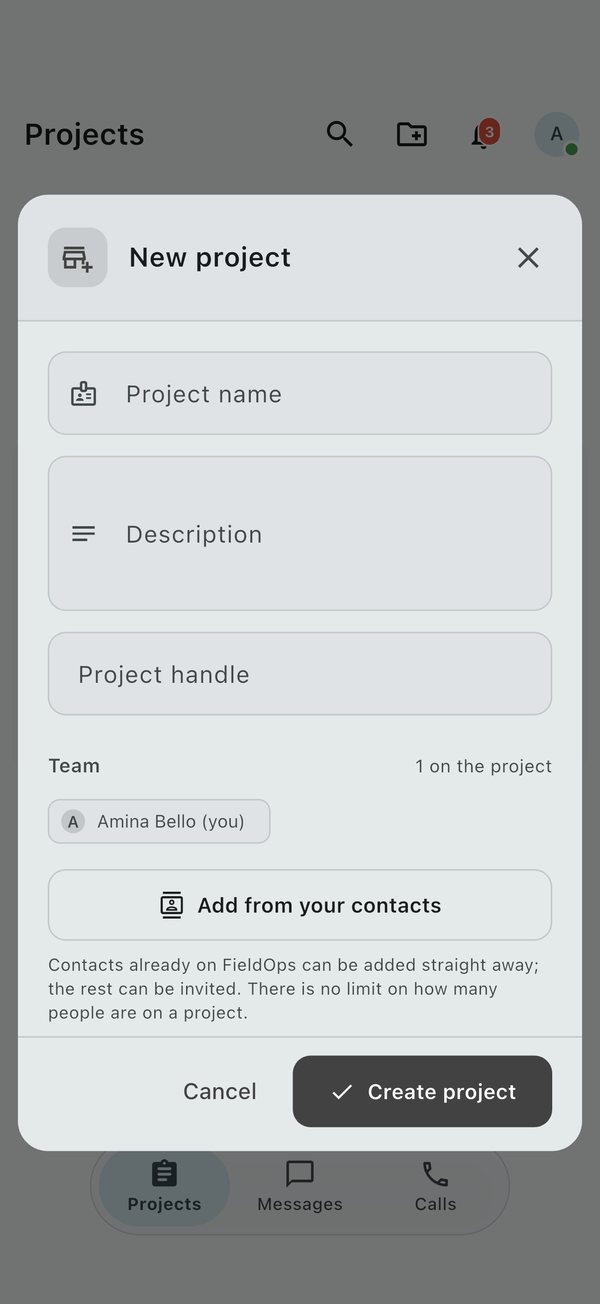
- On the Projects tab, tap New project.
- Enter a Project name (what the job is called) and a short Description.
- Choose a Project handle, for example
northern_corridor. People can use it to find the project. - Tap Add from your contacts to bring people in straight away. Contacts who are not on FieldOps yet are sent an invitation.
- Save. You become the project's creator and its first manager.
Join a project
There are three ways in:
- Invitation. A manager adds you. The invitation appears on your Projects tab and in your notifications. Tap Join.
- Invite link. A manager shares a link. Open it on your phone and you join directly.
- Ask to join. Find a project that is shown in search, open it and tap Ask to join. The button changes to Request sent, and a manager approves or declines you.
Project options
Inside a project, tap the Project options menu (three dots) at the top:
| Option | Who sees it | What it does |
|---|---|---|
| Edit project details | Managers | Change the name, description, picture and handle, and add members |
| Project info | Everyone | Counts of photos, videos, documents, members, updates and storage used; opens the media browser and project history |
| Members | Everyone | Who is on the project; managers also see invites and join requests |
| Leave project | Members | Removes you from the project (you are asked to confirm) |
| Report project | Everyone | Sends the project to the FieldOps team for review, with a reason |
| Delete project | Managers | Deletes the project and everything in it |
Edit a project (managers)
Open Edit project details to:
- Set a Project picture. With no picture, the project's initials are used.
- Change the Description and Project handle, and turn Show in search on or off.
- Add members with Add new member, Invite by phone (paste one or more numbers) or Import from CSV (a spreadsheet of names and numbers).
- Create an Invite by link link to send. Tap Copy or Send. Make a new link stops the old one working.
Members and roles
Each member is shown as Creator, Manager or Member.
- Members can post to the timeline, fill in forms, view the map and documents, and message the team.
- Managers can also edit the project, build forms, change and delete shared content, and manage people.
- The creator is a manager who cannot be removed from their own project.
In Members, a manager taps the button beside a person to Make a manager, Make a member or Remove from project. Removed people lose access at once. The Requests tab lists people who asked to join; tap Approve or Decline. Awaiting reply shows invitations not yet answered.
Project history
Open Project info, then the history button, to see Project history: who created the project, changed its details, invited, promoted or removed people, added or changed forms, and added, changed or removed map features. Newest entries are at the top.
Deleting a project
Deleting a project removes everything on it for everyone: posts, forms, responses, map features and media. You are always asked to confirm.
- A project with one or two managers is deleted as soon as a manager confirms.
- A project with three or more managers needs agreement. The first manager taps Request deletion, and 2 more managers must open the request and tap Approve deletion. The requester can withdraw it.
Timeline
The Timeline is a project's diary: every update, photo, video, voice note, document and page the team posts, newest first, each marked with who posted it and when. It is the page a project opens on.
Post an update
- Open the project and go to Timeline.
- Tap the composer at the top and write your message. Type @ to mention a teammate; they get a notification.
- Add what you need:
- Photo/Video from the camera or your gallery (several at once).
- Record voice note. The recording shows as a waveform people can play.
- Document, such as a PDF or a drawing.
- Location, to share where you are standing.
- Page, a formatted write-up (see below).
- Poll, to ask the team a quick question.
- Event, to put a meeting or visit on the team's calendar.
- Tap Post.
Tap Save Draft to keep an unfinished post for later; Saved Drafts lists them. With no signal, your post is kept on the phone and sent as soon as you reconnect.
Polls and events
- Poll: type the question, then at least 2 options (Add Option for more). Choose Allow Multiple Votes, Anonymous Voting (hide who voted for what) and an Expiry Date if you want one.
- Event: give it a title, Start and End times (or All Day Event). It is posted to the timeline for everyone on the project.
Pages
A page is a longer formatted document: headings, lists, quotes, callouts, photos, videos and galleries. Write it in the page editor and it is posted to the timeline as an update. Tap it to read it full screen.
React to posts
- Like with one tap. Tap the count to see who liked it.
- Comment to start a discussion. You can reply to a comment, add a photo or a sticker, and edit or delete your own comments.
- Save (the bookmark) keeps a post in Saved posts on your profile.
- Share sends the post to a chat or another app.
- Translate shows the post in the language set on your profile. Tap Show original to see the words as written. Translation needs a connection.
- Download (in a photo or video opened full screen) saves it to your phone, stamped with the project's name, who posted it and the FieldOps mark. On Android it goes to the FieldOps folder and appears in your gallery; on iPhone it goes to the FieldOps folder in Files.
- Views are counted automatically, once per person.
Phone numbers, email addresses and @usernames in a post can be tapped: message or call the person on FieldOps, call through your phone line, write an email, add them to your contacts, or copy it.
Likes and saves made offline are kept and sent when you reconnect.
The post menu
Tap the three dots on a post:
- Edit or Delete your own posts.
- Report someone else's post to the FieldOps team, with a reason.
- Managers can also pin an important post to the top, edit or remove anyone's post, add a warning to it, or suspend it so it is hidden.
Find things
- Tap search on the Timeline and type names or words to filter the posts.
- Open Project info and tap Photos, Videos or Documents to browse every file posted on the project. Photos open full screen and can be played as a slideshow.
Documents
Documents holds a project's paperwork: drawings, specifications, reports, contracts, permits, letters, photos and survey files. Everyone on the project can open them; they are kept on your phone once opened so you can read them offline.
Where to find them
- Phone, upright: open Project options, tap Project info, then Documents.
- Phone on its side, tablet, computer or browser: tap the folder button at the top right of the project to open the documents panel. On a wide screen it is already open.
- Files attached to timeline posts appear here too.
Upload a document
- Open the documents panel and tap Upload.
- Tap Select Files and pick one or more files. You can also take a photo or choose from your gallery.
- Enter a title and a short description, and choose a category: site drawings, specifications, reports, contracts, permits, correspondence, photos, surveys or other.
- Tap Upload Documents. Offline, the upload waits and sends when you reconnect.
Open, download and share
Tap a document's three dots for View, Download, Share or Delete.
| File type | How it opens |
|---|---|
| Photos, PDFs, text and spreadsheets (CSV) | Inside FieldOps |
| Word, Excel and CAD drawings (DWG) | In a matching app on your phone or computer |
Deleting a document asks you to confirm, then archives it so it no longer shows in the project.
Maps, survey and trips
The Satellite page is the project's living map. Everything drawn on it, whether markers (points), lines or areas, belongs to the project and is visible to its members. Features are filed in colour-coded groups.
Move around the map
- Drag to pan and pinch to zoom. Tap the target button to jump to your GPS position.
- Use the layers button to switch the background between satellite imagery, OpenStreetMap and topographic maps.
- The scale bar and your coordinates stay on screen. Turn on the grid for coordinate lines.
- The map remembers, on your phone, where you last left it in each project and which background you chose, and opens there next time.
Draw a feature
- Choose what to draw: a point, a line or an area.
- Tap the map to place each corner. You can also type coordinates by hand: decimal degrees, degrees-minutes-seconds, or UTM with its zone.
- Your taps snap to corners and edges already on the map. The bearing and distance of every leg show as you go.
- Finish (double-tap or tick), then give the feature a name, a group, a colour and any details: text, numbers, yes/no, dates or photos.
Corner beacons are labelled automatically with each leg's angle and length. Move a corner and every measurement updates. To check a distance or an area without saving anything, use Measure.
Look at a feature
Tap any shape to open its details: name, kind, group, size or length, and coordinates. Tap the same spot again to step through shapes stacked underneath.
Feature tools (managers)
Managers see a grid of tools when they select a feature:
| Tool | What it does |
|---|---|
| Style and labels | Rename and recolour; set line pattern and width, fill and marker shape; choose labels for name, lengths, area, bearings and corner beacons, for one feature or its whole group |
| Fields | View and edit the feature's details, including those brought in by an import |
| Move its corners | Drag corners into place on the map |
| Offset | Make a parallel line a set distance either side, for road reserves and setbacks |
| Split | Cut an area along a line you draw, or along an existing line |
| Subdivide | Cut an area into plots by count, by exact area (the leftover is flagged) or as a grid; cut a line by count or by distance |
| Add points | Peg a line or boundary at a set spacing (chainage) that carries round corners |
| Contours | Build contour lines inside an area from SRTM elevation data, at the Contour interval you choose. Every fifth line is heavier and labelled with its height, and the lines are filed in a group of their own |
| Elevation profile | Draw the ground along a line as a section, with its length, lowest and highest points, climb, descent and steepest grade (see below) |
| Copy | Duplicate the feature, then tap where the copy goes |
| Group with others | File it, and others, under a shared group |
| Turn corners into points | Save each corner of an area as its own point you can navigate to |
| Bring to front / Send back | Choose which stacked shape is picked first |
| Navigate | Walk to it with live guidance (see below) |
| Layout | Put it on a printable plan |
| Export | Save it as a file (see below) |
| Delete | Remove it for everyone, after you confirm |
Contours are built online while you keep working, and appear when ready. SRTM heights are about 30 m apart, so they suit planning rather than setting out, and very small intervals add lines rather than detail.
Press and hold a group (or open it from the layers panel) to zoom to it, hide or show it, rename and recolour everything in it, move features between groups, lay it out, export it or delete it.
Elevation profile (managers)
Choose Elevation profile on any line, such as a road, canal, drain or boundary, to see the ground along it from SRTM elevation data. Under the section it shows the Length, Lowest and Highest points, total Climb and Descent, and the Steepest grade. The line's corners are marked on the section, so a bend on the map can be found on it.
- Drag along the section to see the spot on the map.
- Sample every sets how far apart the heights are read: automatic, or every 10, 25, 50 or 100 m.
- Smoothing (Off, Light or Strong) evens out the steps in the SRTM data, which comes in cells about 30 m apart.
- Vertical scale draws the heights true to scale (1×), exaggerated 2×, 5× or 10×, or stretched to Fit the chart.
- To put in a surveyed level, hold a point (or pick it and tap Set height) and type the height. Heights you set are never smoothed. Use SRTM puts one back, and Every height back to SRTM clears them all.
- Tap Save to keep the profile with the line. It opens again as you left it, offline too. Closing with changes unsaved asks whether to save them. If the line is reshaped later, the profile is read again and any heights set by hand are let go.
Reading the ground needs a connection the first time; a saved profile does not.
Layers panel
The layers panel lists every group with its colour, count and an eye to hide or show it. Hide single shapes or whole groups. On a wide screen the panel sits on the left of the map.
Import and export
- Import CSV, TXT, DXF, Shapefile (or a zipped set), KML, KMZ and GeoJSON files. Choose the coordinate system the file uses, check the preview, then save.
- From a form turns the responses to a form, from this project or another of yours, into points, a line or an area. Turn on Keep the form linked and every new response is added to the map as it arrives: another point, or the next corner of the line or area. Unlink stops it.
- Export to Shapefile, CAD/DXF (one layer per group), KML for Google Earth (colours kept) or a coordinate list, in WGS84, UTM, a Minna belt or a projection you name.
Print plans
- Choose Layout on a feature or a group.
- Pick the paper size (A4 to A0, or Letter), orientation, frame and coordinate system.
- Place the scale bar, north arrow, title and notes. Leg tables are made from the drawing.
- Save the plan or export it as a PDF. Plans are kept with the project so you can print them again.
Navigate to a point or along a line
- Tap a point, line or area and choose Navigate.
- Follow the arrow. Bearing and distance, or chainage along a line, update as you walk, and a chime sounds when you arrive.
- Record your route as you go; it is saved as a line when you stop.
Geofences can announce when you walk into a marked area. On Android, a small floating panel keeps the guidance on screen while you use other apps.
Live trips
A trip shows where everyone on it is, live, on the map. Use it for a field party, a site visit or a convoy.
- On the Satellite map, tap Start a trip.
- Choose who can see it. Private trips stay with the project's members; public trips can be shared with anyone by link or code.
- People who join appear as dots. Tap a dot for their name, role and photo.
- End the trip when you are done. Each person's route is kept on the map as a line.
Your position is shared only while you are on a trip, and only with people who can see that trip.
Going somewhere without signal? Look over the area on the map while you are online so the imagery is kept on your phone. See Working offline.
Forms and data collection
Forms collect the same information the same way every time, such as a daily inspection or a survey sheet. Every answer arrives stamped with where and when it was collected and who collected it, with its photos and voice notes attached.
Fill in a form
- Open the project and go to Forms. You see the project's forms, newest first, with any pinned forms at the top.
- Tap a form and answer its questions. Questions marked as required must be answered before you can submit.
- For photo, video or audio questions, take the picture or recording on the spot or choose one from your phone.
- Submit. Your GPS position, the time and your name are added automatically. If the location looks wrong, tap Recapture location.
While the form is open it keeps listening to your GPS and combines every reading, so the position gets sharper the longer you stay. The top of the form shows Location ±N m · N readings: green once it is better than 15 m, orange until then. If you walk somewhere else and stay there, it starts again from where you are.
Without signal, the response, its media and its location are kept on your phone and sent when you are back in range.
Build a form (managers)
- In Forms, tap New form (or Create Form).
- Give it a title and a short description.
- Add questions. The types are short text, long text, multiple choice, dropdown, date, time, number, email, phone, web address and media (photo, video or audio).
- Mark the questions that must be answered as required, and drag questions into the order you want.
- Save. Every member of the project can now fill it in, online or not, and everyone on the project except you is notified, with a way straight into filling it in.
Managers can open a form's menu and tap Pin to top to keep it at the head of the list for everyone.
Your unsaved form is kept as a draft on your phone, so you can come back to it. Use Edit form to change a form later, or Delete form to remove it and its responses.
Review responses
Open a form's menu and choose:
- View responses: every response with its photos and videos. Each is numbered, #1 for the oldest, and keeps its number however you search or filter, and each shows how many fields were completed. Use Search responses or Filter Responses to narrow by date range or answer. Managers can Edit response or Delete response.
- Dashboard: pick a question to see counts and charts of the answers.
- View on Map: every response with a location, plotted on the project map beside the drawn features.
Export responses (managers)
Tap Export Responses and choose a format:
| Format | Use it for |
|---|---|
| CSV | A spreadsheet in Excel or Google Sheets |
| A printed report, laid out with a template | |
| Google Earth KML | Viewing the locations in Google Earth |
| ESRI Shapefile | GIS software such as QGIS or ArcGIS |
| CAD DXF | AutoCAD and other drawing software |
For the map formats you choose whether each response becomes a Point, Line or Polygon. Responses can also be turned into map features from the map's import.
Printable templates
A template lays a form out on paper: A4, Letter, A5 or ID-card size. Place each answer where you want it, and add QR codes and a background image. Choose Create New Template, design it, then pick it under Select Template when exporting a PDF.
Messages
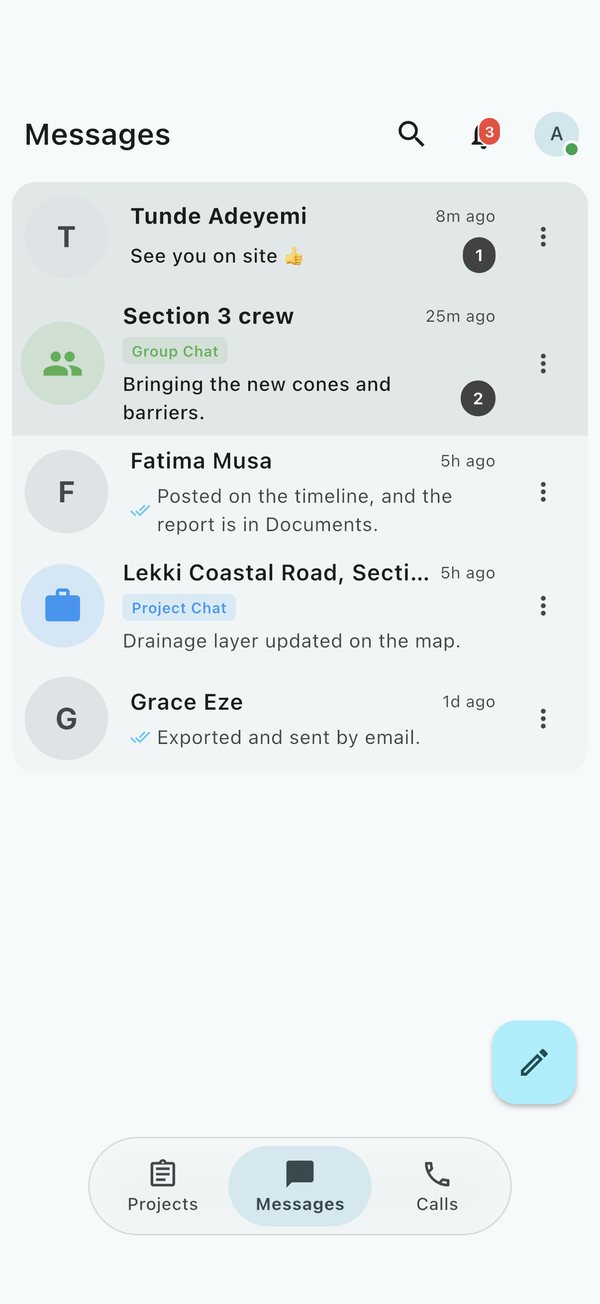
The Messages tab holds every conversation you are in: one-to-one chats, group chats and each project's chat room. Conversations with something new show an unread count and move to the top. A message you started but did not send stays in the chat, and the list shows it as Draft:.
Open the menu on a chat in the list to:
- Pin chat to keep it at the top. You can pin up to 3, and only you see your pins.
- Mark as Read or Mark as Unread.
- Mute it for 8 hours, 1 week or Always, so it sends no alerts, even to an iPhone or a closed app. Unmute turns alerts back on.
- Make a Voice Call, View Members or Delete Chat.
Start a conversation
- On the Messages tab, tap the pencil button at the bottom right. It opens into Message, Group and Status. Tap Message: you see your contacts who use FieldOps, and can search by name, @username, phone number or email.
- Tap a person to open a chat with them.
- To reach several people, select them and choose:
- New group, a shared conversation. Give it a name.
- Group call, to ring them all at once.
- Broadcast, one message delivered to each person privately.
Group goes straight to a new group: give it a Group name, add people by phone number or email (at least one other person), and tap Create group. Status opens a new status.
If someone is not on FieldOps yet, tap Invite to send them a link.
Saved messages at the top of the new-message sheet is a chat with yourself: a place to keep notes, photos and files for later.
Send messages
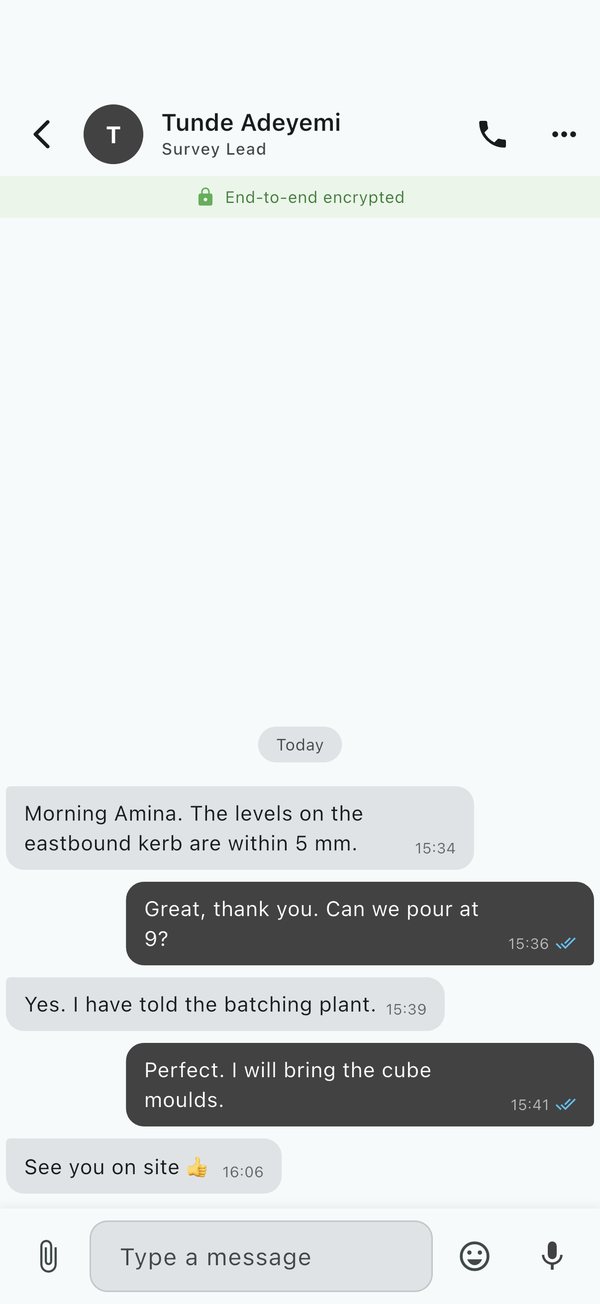
In a chat you can send:
- Text, emoji and Stickers. Type @ in a group to mention someone.
- Photos and videos (Attach media), files, a contact (Share a contact) and your current location.
- Voice notes. Tap the microphone to record. Tap Pause and Resume to carry on in the same note, then send it.
- Request location, which asks the others for their current location. They answer Yes or No on the card it sends.
Style words the way most messaging apps do: *bold*, _italic_, ~strikethrough~ and a backtick on each side for monospace. Links, phone numbers, email addresses and @usernames in messages can be tapped to message or call the person on FieldOps, call through your phone line, write an email, add them to your contacts, or copy.
Ticks under your messages show when they are sent, delivered and read. Without signal, messages wait on your phone and send themselves when you reconnect.
Voice notes
Voice notes play with a waveform. Change the playback speed for long notes, or tap Transcribe to read the note as text instead of playing it.
Work with a message
Press and hold a message to:
- Reply to it, so your answer quotes it.
- Edit a message you sent (it is marked edited).
- Copy, Forward to another chat, or Share to another app.
- Delete for me, or Delete for everyone for a message you sent.
- Translate a written message into the language set on your profile. Show original turns it back. Translation needs a connection.
Chat options
Tap the chat's name at the top, or Chat Info in its menu, for:
- The members, and the chat's shared Photos, Videos, Documents, Audio and Links.
- Search this conversation.
- Chat theme, to restyle your bubbles and background in this chat or every chat.
- Auto-translate, which shows every new message in the chat in the language set on your profile.
The phone button at the top starts a call. The chat's menu also has Clear Messages, Block or Unblock, and Report user for someone breaking the rules. Reporting does not block them. To mute or pin a chat, use its menu on the Messages tab.
Status updates
A status is a photo, video, voice note or coloured text you share with your contacts for 24 hours.
- Tap New status at the top of Messages, or Status on the pencil button, to post one.
- For a text status, choose the pen colour and the lettering, and set the words in Bold, italics or on a Highlight. A link in the words shows as a card with the page's picture and headline.
- For a video, tap Edit video: crop, stickers, picture, words to cut it to a shape and lay stickers, a picture or words over it. Add a sticker offers moving stickers too.
- The strip at the top shows who has posted. A coloured ring means you have not seen it yet.
- Open a status to watch it. Hold to pause, tap to skip, and swipe up to reply privately.
- You can repost someone's status as your own.
- Tap Hide in the viewer to take someone's statuses out of your strip. They wait under Hidden, at the end of the statuses, where you can show them again. Only your phone knows whom you hid.
Calls
FieldOps makes voice and video calls over the internet to anyone on the app, one-to-one or in groups, with live captions, translation and recording. Calls need a connection on both sides.
The Calls tab
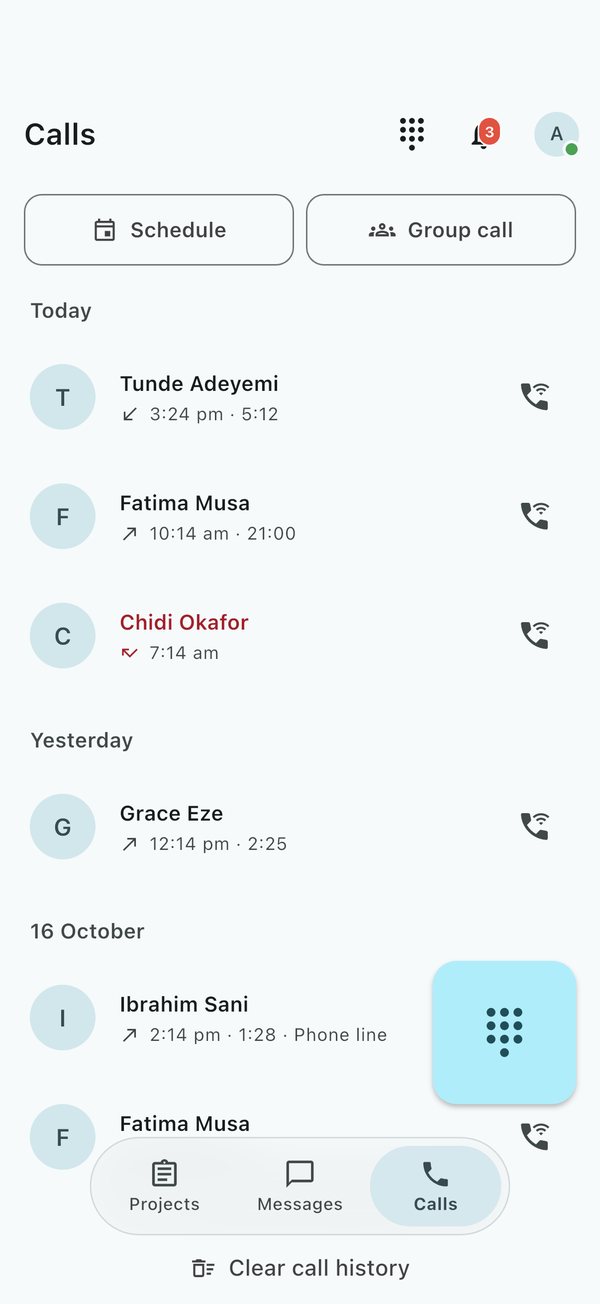
The Calls tab lists your recent calls, with an arrow for incoming or outgoing and red for missed. Scheduled calls appear at the top.
- Tap a call to call that person back, or open your chat with them.
- App call marks calls made through FieldOps. Phone line marks calls handed to your phone's normal dialler, which FieldOps cannot record.
- Clear call history removes the list from your phone.
Make a call
- From a chat, tap Voice Call or Video Call at the top.
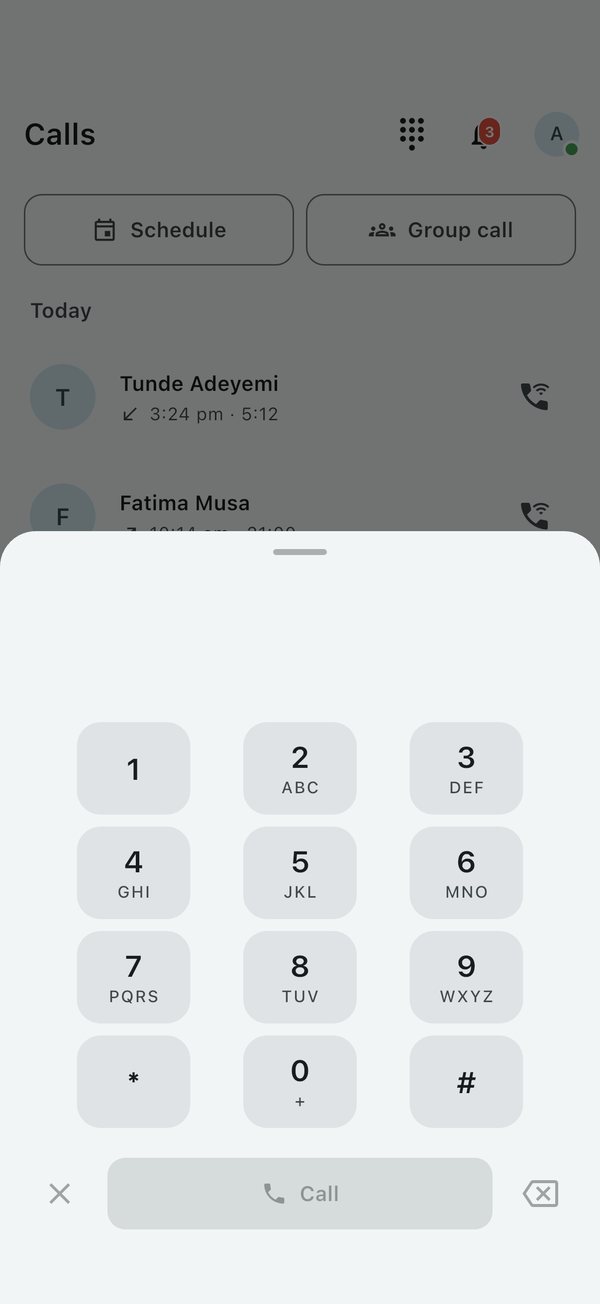
- From the Calls tab, tap Dialpad and type a number. A teammate on FieldOps rings in the app. Anyone else is called through your phone line.
- If an app call cannot connect, you can choose Use phone line instead.
Answer a call
An incoming call rings full screen, even when your phone is locked (on Android, allow full-screen alerts when asked). Tap to answer, or Decline. You can also answer or decline from the notification.
During a call
| Button | What it does |
|---|---|
| Mute / Unmute | Turns your microphone off and on |
| Speaker | Switches between the earpiece and the loudspeaker |
| Camera / Flip | Turns your video on or off, and swaps front and back cameras |
| Captions | Shows what is being said as text, as people speak |
| Translate | Translates the captions into the Language you choose |
| Record this call | Records the call (a REC badge shows while recording) |
| Add people | Rings more people and turns the call into a group call |
| End call | Hangs up |
Go back or switch apps and the call keeps going in a banner at the top of the screen. Tap the banner to return. Only End call hangs up.
Captions are made on your own phone and only you see them. In a group call, everyone's voice is captioned on the phone of whoever turned captions on.
Group calls
- Start one from a group, from Group call when starting a conversation, or by tapping Add people during a call.
- Everyone appears in a grid. Anyone on the call can invite more people while it is under way.
- The call ends when the last person leaves.
Ring several people at once
Use Ring to call several people together. The first person to answer gets the call, and the others stop ringing.
Schedule a call
Tap Schedule, choose who, when and add a note. FieldOps reminds you when it is time; tap Ring now to start it. To call it off, tap Cancel it.
Recordings
When a recorded call ends, the recording is filed in your chat with that person, with a transcript showing who said what.
Always tell everyone on the call that you are recording, and follow the law where you are. Some places require everyone's consent.
Groups
A group gathers related projects and people, such as one client, one contract or one region. Groups can sit inside other groups. They are separate from group chats in Messages.
Create a group
- On the Projects tab, tap New group (the folder with a plus) at the top.
- Enter a Name and an optional description, and pick a Colour.
- Add a Group picture and a Group handle if you like. Turn Show in search off to keep the group out of other people's search results.
- Tap Create. You are its first manager.
Inside a group
Open a group to see its projects and its people.
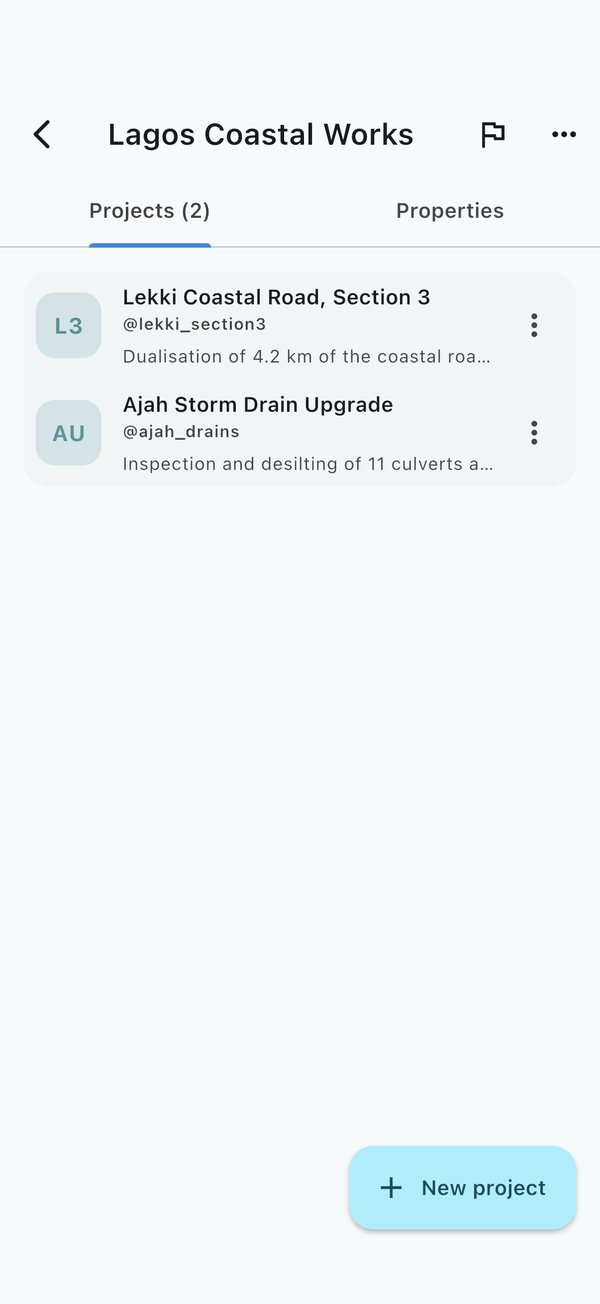
- Tap New project to start a project that is filed in this group from the start.
- Tap a project to open it.
- The Properties tab holds the group's details and its Managers and Members. Managers can Make a manager, Make a member or Remove from group. Removed people lose access to the group, but keep any projects they are a member of.
File projects into groups
- On the Projects tab, press and hold a project, then choose Move to group and pick the group (or Out of every group).
- To move a whole group inside another one, open it and choose Move group, then pick where it goes, or Top level.
- When someone asks for their project to be filed in your group, a banner says so. Tap Let it in or Turn down. Another manager must answer a request you made yourself.
Change or remove a group (managers)
- Edit group changes its name, description, colour, picture and handle.
- Delete group removes the group itself. Its projects are kept and become ungrouped.
- Report group (the flag) sends a group that breaks the rules to the FieldOps team.
Find any site
The sites list searches every project and group you belong to, whether or not it is filed in a group. Type in Search sites and projects to find one.
Notifications
FieldOps tells you when something needs your attention in two ways: an alert on your phone, and a list inside the app behind the bell.
The notifications list
Tap the bell at the top of the home screen. The badge on it shows how many are unread.
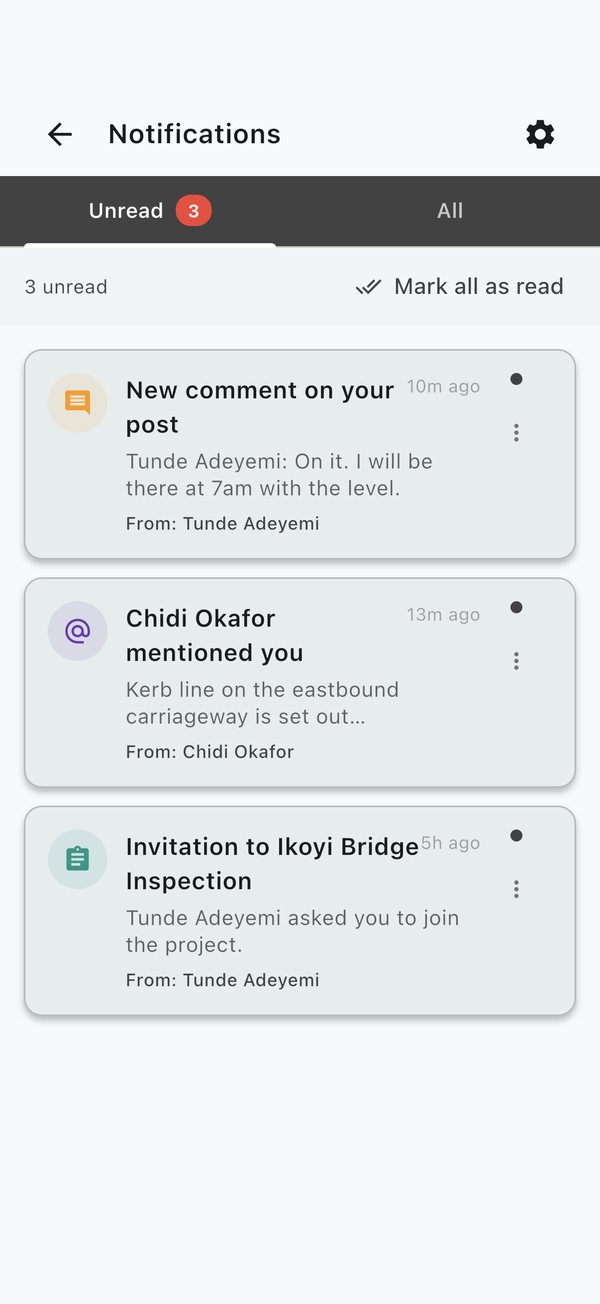
- You are notified about project updates, new forms, messages, comments and replies, likes, @mentions, invitations to projects, new documents, trips starting and calls.
- Tap a notification to go straight to what it is about.
- Tap Mark as read on one, or Mark all as read to clear the lot. Filter to Unread to see only new ones.
- Swipe or use the menu to Delete a notification.
Notifications are kept for 30 days, then removed.
Choose what you are told about
Open your profile and go to Notification Settings:
- Turn each kind on or off: Timeline Updates, Direct Messages, Interactions (comments, replies, likes and mentions), Project Trips and Status Updates.
- Choose your Call Ringtone. Tap Preview to hear it, or keep Whatever your phone rings with.
- Set quiet hours, and mute a project or a person you do not want alerts from. To quiet one chat, mute it from its menu on the Messages tab.
- Reset to Defaults puts every setting back as it started.
If you get no alerts at all, check that notifications for FieldOps are allowed in your phone's settings.
Working offline
On Android, iPhone and the desktop apps, FieldOps is built to be used without a signal. You do not switch anything on: what you do offline is kept on your device and sent automatically when you reconnect. A banner at the top tells you when you are offline.
Before you go
- While you are still online, open the project you will work on, and its timeline, forms and documents, so they are on your phone.
- On the Satellite map, look over the area you will work in at the zoom levels you need, so the imagery is kept.
- Open your profile and check that Offline Storage is on, and how many updates per project it keeps (below).
Before a real field day, switch your phone to aeroplane mode and run through the day's work once.
What works offline
| Works offline | Needs a connection |
|---|---|
| Reading projects, timelines, forms and documents already on your phone | Voice and video calls, captions and translation |
| Posting to the timeline, with photos and voice notes | Map imagery for areas you never opened |
| Filling in forms, with GPS stamps and media | Seeing other people's changes made since you went offline |
| Drawing and editing map features; navigation; elevation profiles already saved | Transcribing voice notes, translating messages and posts, building contours, and reading a new elevation profile |
| Writing messages (sent when back in range) | Signing in on a new device |
When the signal returns
Everything waiting is sent in the order you did it: messages first, then timeline posts, then large media such as photos and video. Uploads that fail are tried again, and files stay on your phone until they are safely sent. Sync also runs in the background from time to time, not only while the app is open.
Storage on your phone
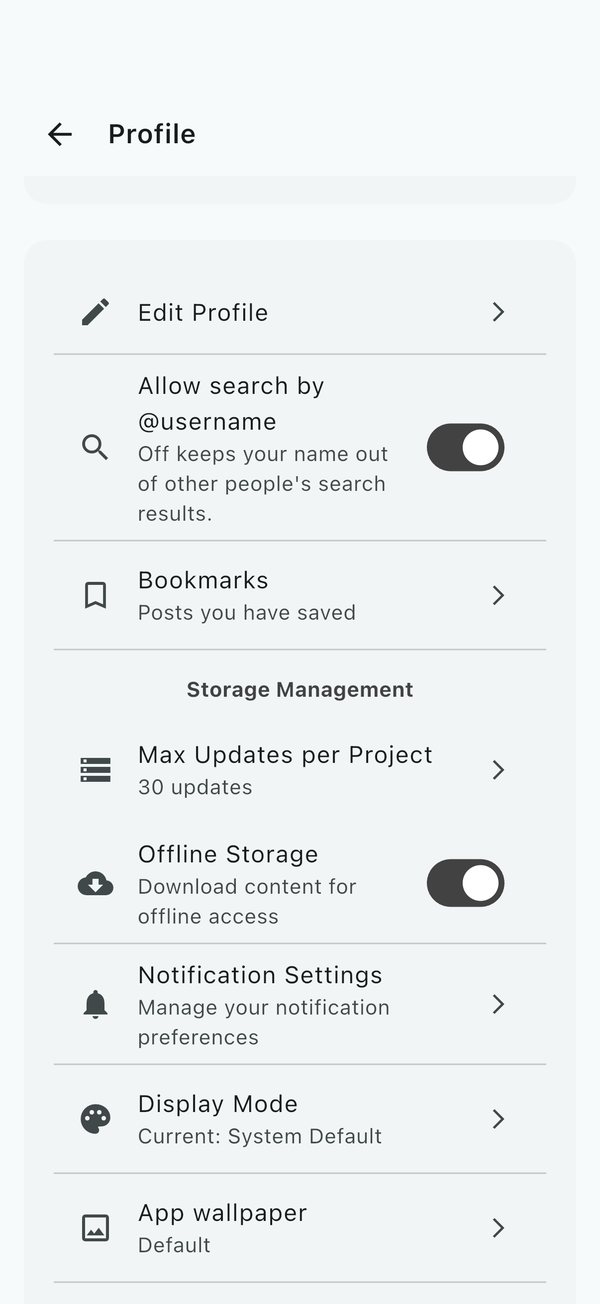
Open your profile and look under Storage Management:
- Offline Storage (Download content for offline access) keeps projects, photos, videos, documents and map imagery on your phone. Turning it off cleans up what was cached.
- Max Updates per Project sets how many recent timeline updates are kept for each project. Download all updates keeps everything but uses more storage.
While work is waiting to upload, a banner at the top says how many actions are pending. When you are back online, tap SYNC NOW to send them straight away.
If two people changed the same thing
Most clashes are settled automatically: for messages and posts, the latest change wins. For projects and documents, a banner tells you how many conflicts need resolving. Tap RESOLVE to see both versions side by side, then choose Use Local (keep yours), Use Server (keep theirs) or Merge for each, or Auto-Resolve All. Nothing overwrites your work without your say.
In a browser
The web app at app.fieldopsinc.com needs a connection. Browsers do not let a web page keep a project's imagery and media the way a phone app can, so use the phone app in the field.
Your profile and settings
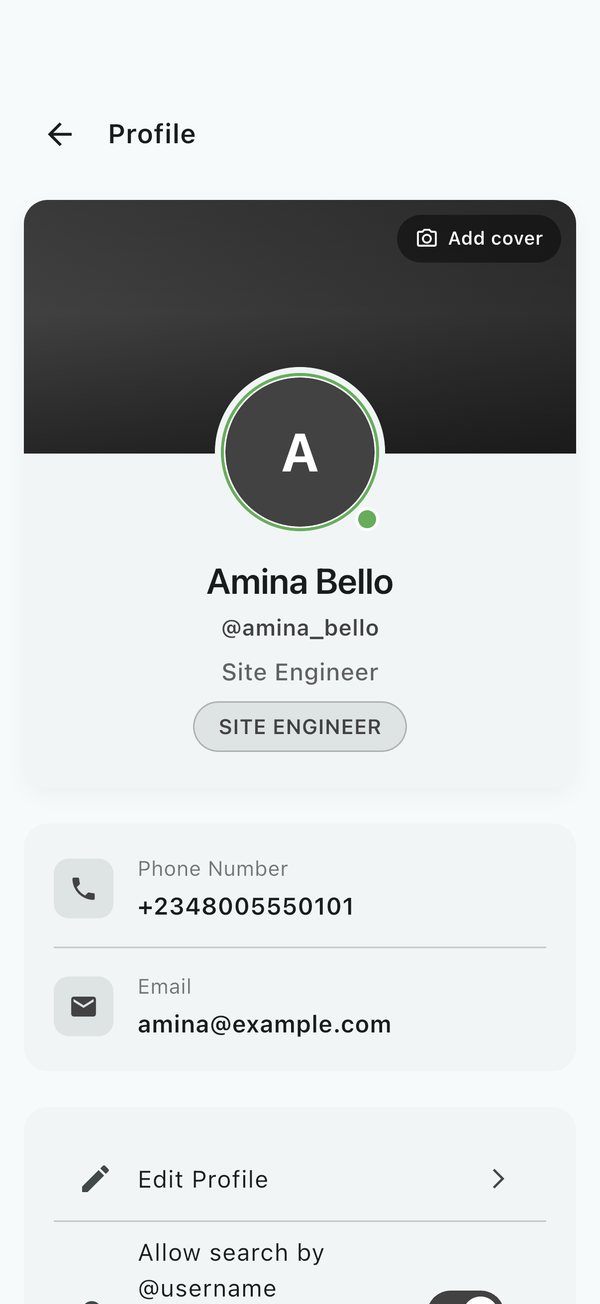
Tap your picture at the top right of the home screen to open your Profile. Everything about your account and how the app looks and behaves is here.
Edit your profile
Tap Edit Profile to change your name, photo, position and email address, then tap Save changes.
- Your photo can be taken on the spot (Take a photo) or picked from your gallery (Choose from gallery), then cropped.
- Your cover is the wide picture behind your photo. Tap Add cover (Edit cover once you have one) and use Frame your cover to position it.
- Add an email address if you want replies to problem reports.
Privacy
Open Privacy on your profile to choose:
| Setting | What it decides |
|---|---|
| Who can find you: By @username or name | Whether you appear in other people's search. Off also keeps your projects and groups out of it. |
| By phone number and By email address | Whether people who have your number or address can find you |
| Online status | Whether others see the green dot while you are using FieldOps |
| Last seen | Whether others see when you were last on FieldOps |
| Phone number and Email address | Whether they show on your profile and beside your name in lists |
| Read receipts | Whether senders see blue ticks once you have read their messages |
Language
Language on your profile is the language that messages, timeline posts and auto-translated chats are shown in when you translate them. Until you set one, translations go into English. The choices are English, Hausa, French, Arabic, Swahili, Portuguese, Spanish, German, Hindi and Chinese (Simplified), the same as for call captions.
Appearance
- Display Mode: always light, always dark, dark on grey instead of black, or follow your phone's setting.
- App wallpaper: choose a photo or a colour (light blue, green, pink, purple, dark) for the app's background. Position wallpaper lets you frame a photo.
- Chat theme: restyle your message bubbles, for one chat or all of them (from any chat's menu).
Saved posts
Bookmarks lists the timeline posts you have saved, across all your projects.
Storage and notifications
- Storage Management controls what is kept for offline use. See Working offline.
- Notification Settings chooses what you are alerted about. See Notifications.
Subscription
Where subscriptions are switched on, projects need an active plan; messages and calls keep working either way.
| Plan | Price |
|---|---|
| Monthly | ₦2,000 a month |
| Annual | ₦20,000 a year (two months free) |
- Open Subscription from your profile (or tap Subscribe on the first tab).
- Pick a plan, add a Receipt email, and choose how to pay: Card or Bank transfer, through Paystack or Moniepoint.
- Tap Pay. For a card, finish paying in the browser page that opens, then come back.
- For a bank transfer, send exactly the amount shown to the account shown, using the reference, then tap I have paid -- verify. Transfers can take a short while to arrive.
Your plan, its status and its end date then show in the same place.
Other people's profiles
Tap anyone's name or picture to see their profile: their position, the projects you share, and buttons to message or call them.
Sign out
Scroll to the bottom of your profile and tap Sign Out, then confirm. If you are offline with work still waiting to upload, reconnect and let it sync first.
For managers: who can do what
Accounts need no approval: anyone with a phone number can sign up. What people can see and change comes from the projects and groups they belong to, and whether they are a member or a manager there. A person can manage one project and be an ordinary member of another.
| Task | Member | Manager |
|---|---|---|
| See the project's timeline, forms, map and documents | Yes | Yes |
| Post updates, comment, like and save | Yes | Yes |
| Fill in forms | Yes | Yes |
| Draw on the map and navigate | Yes | Yes |
| Upload documents | Yes | Yes |
| Edit project details, picture and handle | No | Yes |
| Invite people, approve join requests, remove people | No | Yes |
| Make someone a manager or a member | No | Yes |
| Build, edit and delete forms; edit and delete responses; export | No | Yes |
| Feature tools on the map (style, split, subdivide, export, delete) | No | Yes |
| Pin, warn about, suspend or remove anyone's post | No | Yes |
| Delete the project | No | Yes (with 3+ managers, 2 more must approve) |
| Create, edit, move or delete a group | No | Group managers |
Bringing people in
- One by one: Members, then Invite, and pick from your contacts.
- Several numbers: Invite by phone, then paste the numbers, one per line (for example
0803 123 4567or+234 803 123 4567). - A spreadsheet: Import from CSV with a column of phone numbers.
- A link: Invite by link, then Copy or Send. Make a new link if the old one has been shared too widely.
People who are not on FieldOps yet are asked to install it; once they sign up with that number, the invitation is waiting for them.
Getting help
Report a problem with the app
- Open your profile and tap Report a problem.
- Describe what happened: what you were doing, what you expected, and what you saw. Include your phone model if you can.
- Tap Send.
If your profile has an email address, you receive a confirmation with a reference number, and the team's answer comes to the same address. With no email on your profile the team still receives the report but cannot write back, so add one first if you want a reply.
Report a post, project, group or person
If something breaks the rules, report it with a reason and the FieldOps team will review it:
| What | Where |
|---|---|
| A post | The post's three-dot menu, then Report |
| A project | Project options, then Report project |
| A group | The flag in the group's top bar (Report group) |
| A person | The menu in your one-to-one chat with them, then Report user |
Reporting someone does not block them; blocking is a separate choice in the same menu.
Contact the FieldOps team
For questions about plans, partnerships, training or anything not covered here, use the contact form at fieldopsinc.com/contact. The team usually replies within two working days.
About
About on your profile shows the version of FieldOps you have. Quote it when you report a problem.
Troubleshooting and questions
Common problems
| Problem | Try this |
|---|---|
| The SMS code never arrives | Check you have signal and picked the right country code, and type the number without the leading zero. Wait a minute, then request a new code. |
| "Maximum Attempts Reached" | You typed a wrong code 3 times. Tap OK and request a new code. |
| "This phone number is already registered" when signing up | You already have an account. Go back and sign in instead. |
| iPhone opens a "not a robot" page at sign-in | This is normal. Complete it and the app continues. |
| The app shows an update page and will not open | The update is required. Tap Update now and install the new version from the store. |
| A teammate cannot see a project | Check under Members that they accepted the invitation (it is not still under Awaiting reply), or approve their request under Requests. |
| My posts or photos are stuck as waiting | Check you are online, then tap SYNC NOW on the banner. If a banner mentions conflicts, tap RESOLVE first. |
| The map is blank offline | Imagery is only kept for areas you looked at while online. Open the area at the zoom you need before you lose signal. |
| A call will not connect | Both people need internet. Some office Wi-Fi blocks calls; try mobile data. Check FieldOps may use your microphone and camera. |
| Calls do not ring when my Android phone is locked | Allow full-screen notifications for FieldOps when asked, or in your phone's settings. |
| I get no notifications | Allow notifications for FieldOps in your phone's settings, then check Notification Settings in your profile and any quiet hours or mutes. |
| "Could not translate. Check your connection." | Translation happens online. Try again once you have signal. |
| "Could not build contours" | Elevation data is fetched online. Check your connection and try again. Over very flat ground, try a smaller interval. |
| "Could not read the elevation" on a profile | The ground is read online. Check your connection and tap Try again. |
| A chat sends me no alerts | It may be muted. Open its menu on the Messages tab and tap Unmute. |
| The app shows the wrong name or icon on my home screen | Delete the app and install it again from the store. |
Questions
Do I need an email address? No. You sign in with your phone number. An email is only used to send you replies to problem reports and payment receipts.
Can I use FieldOps on more than one device? Yes. Sign in with the same phone number on each one. Your projects, messages and settings follow you.
What happens to my work if my phone dies offline? Work you saved in the app is stored on the phone and is sent the next time the app is online. Work that was only typed and not saved or sent is lost, so post or submit as you go.
Who can see my location? Your location is attached to form responses you submit and posts where you share it. During a trip, your position is shared live only with the people who can see that trip, and only until you leave it.
Can I get a project's data out of FieldOps? Yes. Managers can export form responses (CSV, PDF, KML, Shapefile, DXF) and map features (Shapefile, DXF, KML, coordinate lists), and print plans as PDF.
Something is not covered here. Use Report a problem in your profile, or the contact form at fieldopsinc.com/contact.